Photo to Cartoon Made Easy: Why Converting to WebP Is the First Step

Have you ever experienced slow processing times when converting photos to a cartoon style? How did you solve this problem? Let's take a look at image formats—what format were you using when processing was slow? How can we change the image format while preserving image details? How can we choose a format that improves upload and processing speeds?
This is exactly where the WebP image format shines. Google launched WebP specifically to generate smaller image files without significantly compromising image quality, and today nearly all major browsers support this format.
Google's research shows that WebP images are typically 25–34% smaller than comparable JPEG files and 26% smaller than PNG files, while maintaining similar visual quality. Let's take a look together.

Understanding Modern Cartoon Image Workflows
Artificial intelligence has revolutionized digital creation. AI cartoon generators can analyze thousands of visual features simultaneously. They identify elements such as facial landmarks, lighting conditions, textures, colors, and object boundaries in an image, then recreate the scene in a cartoon art style. The higher the quality of the uploaded image, the more detail is preserved.
What Is WebP and Why Does It Matter?
Developed by Google, WebP combines efficient compression technology with exceptional image quality. Unlike traditional JPEGs, WebP supports both lossy and lossless compression, offers transparency similar to PNG, and can even generate animations comparable to GIFs.
| Feature | JPEG | PNG | WebP |
|---|---|---|---|
| Compression | Good | Poor | Excellent |
| Transparency | No | Yes | Yes |
| Animation | No | Limited | Yes |
| Average File Size | Medium | Large | Small |
| Browser Support | Excellent | Excellent | Excellent |
Why Convert Images to WebP Before Cartoonizing?
Converting photos to WebP is like providing the AI with a cleaner, lighter canvas on which to create. This is exactly how AI systems work. Properly optimized WebP images reduce redundant data while preserving subtle facial details, color gradients, and textures.
Faster Upload Speeds
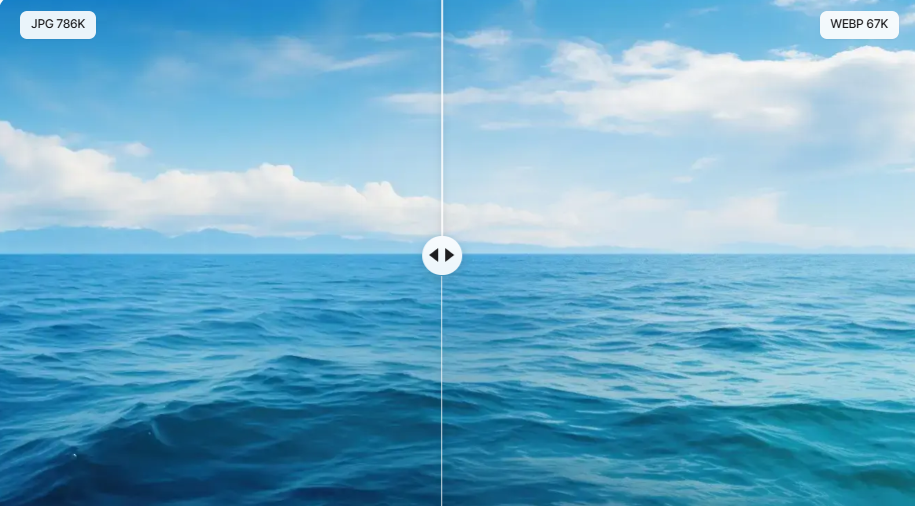
One of the main reasons creators choose WebP is that its file size is much smaller than that of JPEG and PNG. By reducing the amount of data transmitted over the internet, uploads can be completed faster even on standard internet connections.
This speed advantage is especially valuable when you're working with multiple images or experimenting with different cartoon styles. You no longer have to stare at a loading bar—instead, you can devote more time to your creative work.

Better Performance for AI Processing
Artificial intelligence doesn't simply "observe" images the way humans do. It breaks down images into countless patterns, edges, colors, and textures, then reconstructs them in a cartoon style. Every bit of redundant image data increases the amount of information the AI must analyze.
WebP files eliminate most digital redundancy while preserving the most important visual details. Facial contours remain sharp and distinct, light-and-shadow transitions stay smooth and natural, and key features—such as individual strands of hair, eyes, and fabric textures—remain clearly discernible.
The AI doesn't have to spend excessive time processing oversized files, allowing it to devote more time to generating artistic effects. This increase in efficiency typically results in a smoother editing experience.

Reduced Storage Requirements
Creative projects rarely consist of just a single image. Before long, you may accumulate dozens—or even hundreds—of photos waiting to be edited, optimized, or converted to a cartoon style.
Storage space can quickly become an issue, especially for photographers, designers, and marketers managing large image libraries. Since WebP files are much smaller, you can save more images without quickly filling up your device or cloud storage.
Efficient storage management may not sound exciting, but it quietly eliminates one of the biggest challenges facing digital creators.
Choosing the Right Converter Before You Start
The first step in converting photos to WebP is definitely choosing a suitable image format converter. What factors should we consider when selecting a tool? AnyWebP is a great online Windows software for converting to WebP format. Below are some features of AnyWebP, which can also serve as factors to consider when choosing an image converter.
Not all image converters offer the same quality. Some tools over-compress images to reduce file size. To have more flexibility in choosing the quality of the compressed images, it's better to select a converter that allows you to adjust the quality.
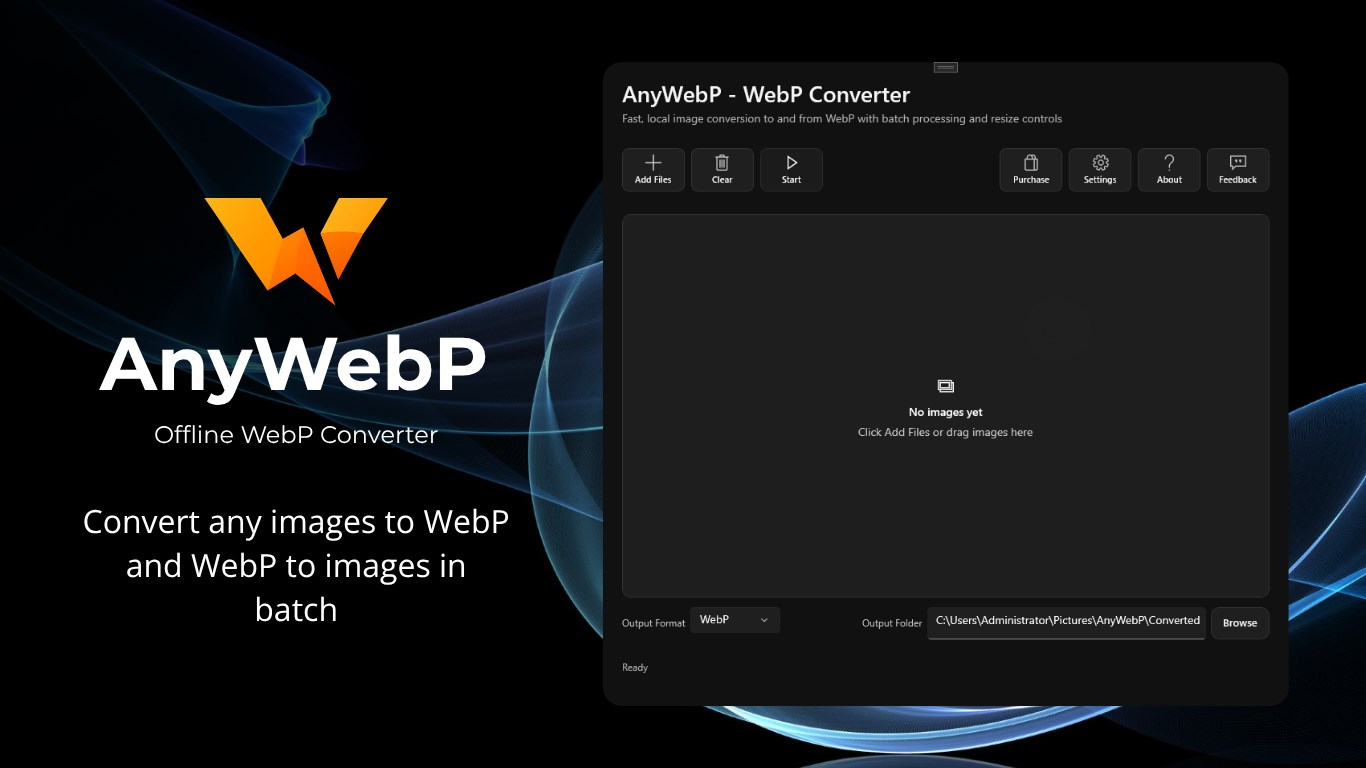
Batch conversion capabilities are essential for processing multiple images, as they improve efficiency. Additionally, these tools should preserve metadata in its entirety.
Privacy and security considerations are also important. When uploading personal portraits or client images, prioritize tools that automatically delete uploaded files. Professional users typically prefer software that runs locally, ensuring that uploaded images remain stored on their own computers.
 Vertexshare Ltd
Step-by-Step Guide to Converting Photos to WebP with Anywebp
- Step 1: Visit the Anywebp website, select "Software" from the navigation bar, and then click to download the installer compatible with your system
- Step 2: Once the download is complete, open Anywebp, click "Add File" in the upper-left corner to add the images you want to convert to WebP format, and select a save location in the lower-right corner of the window
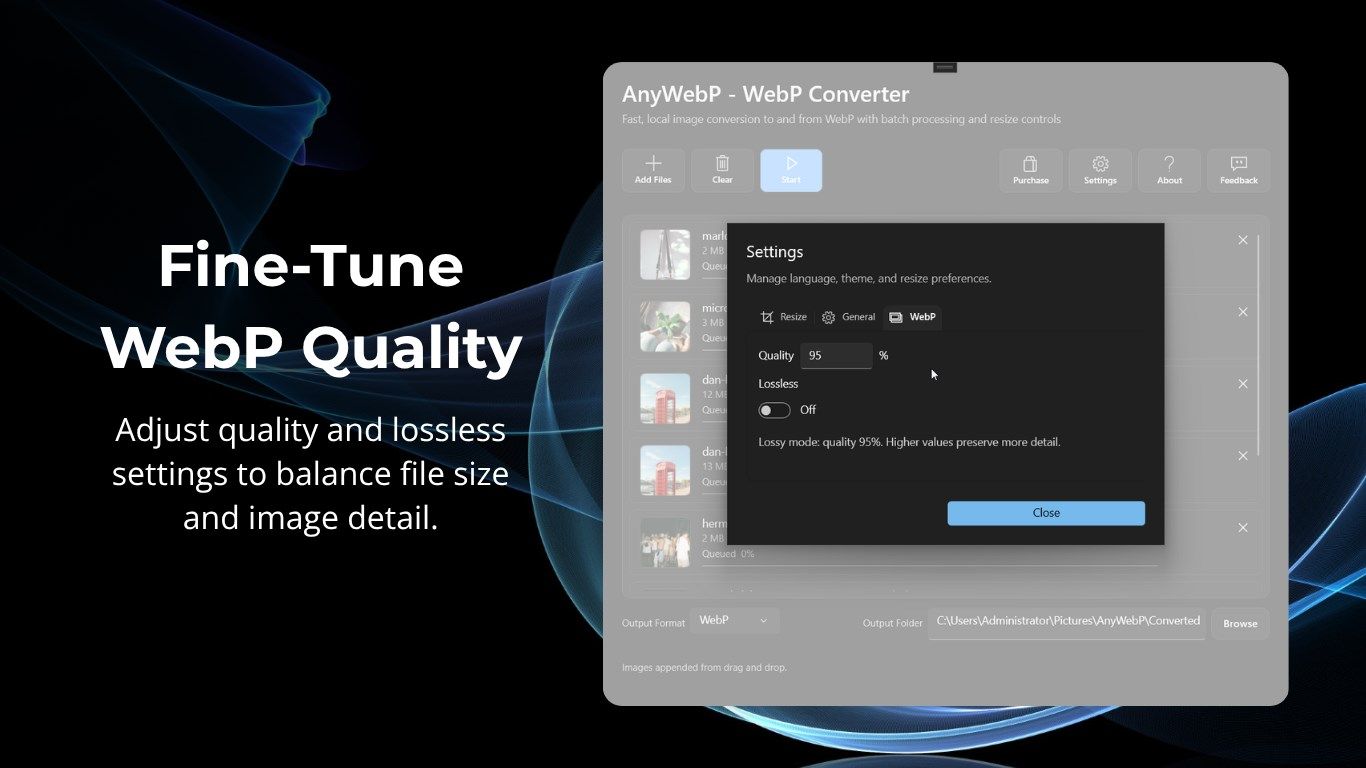
- Step 3: Next, click "Settings" to adjust the "Resize" and "WebP" output parameters, and choose whether to compress the image quality. Once you've finished configuring the settings, click "Start" to begin processing.
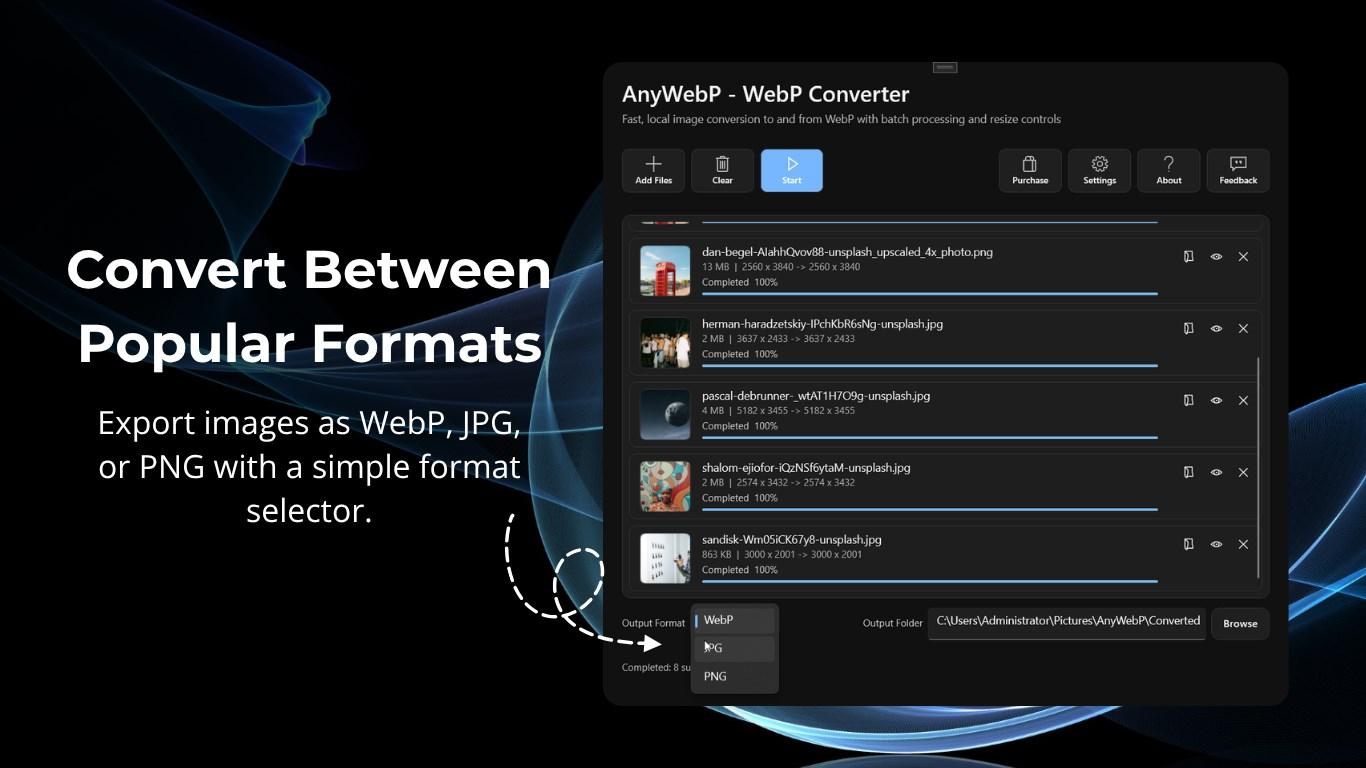
- Step 4: Wait a few seconds for the process to complete. You can click the folder icon next to the file to view the processed image. Click the eye icon to see a side-by-side comparison of the image before and after processing.
Creating Stunning Cartoon Images from WebP with Imagetocartoon
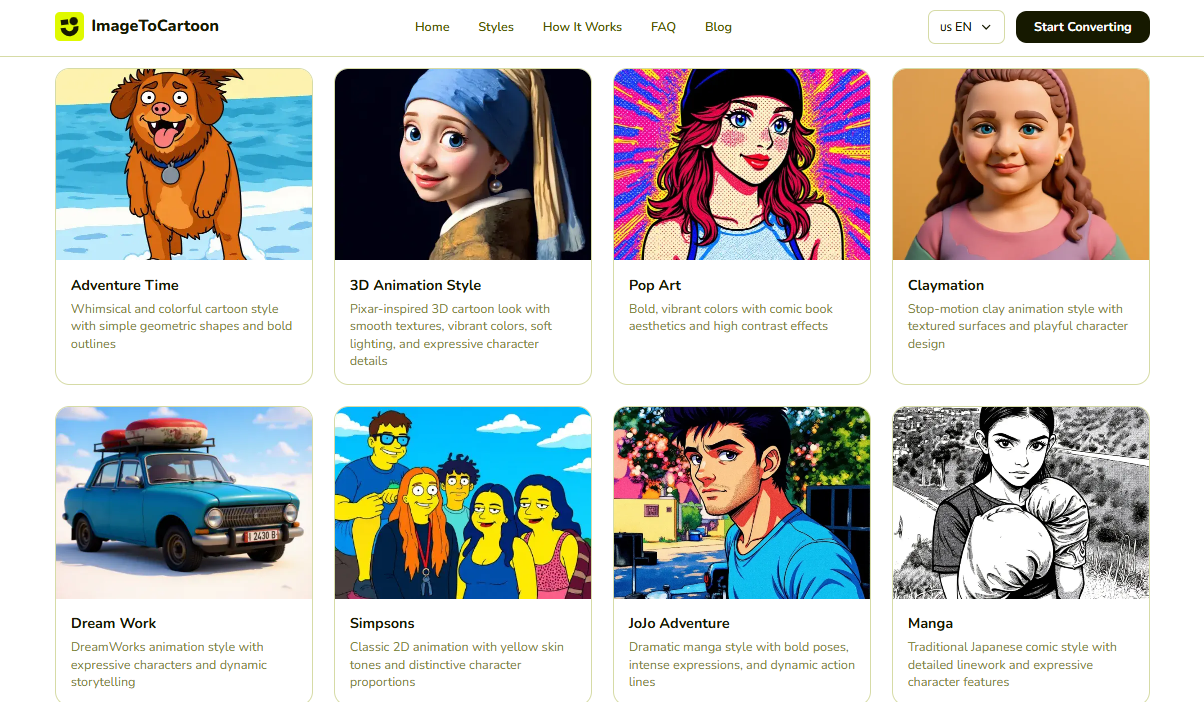
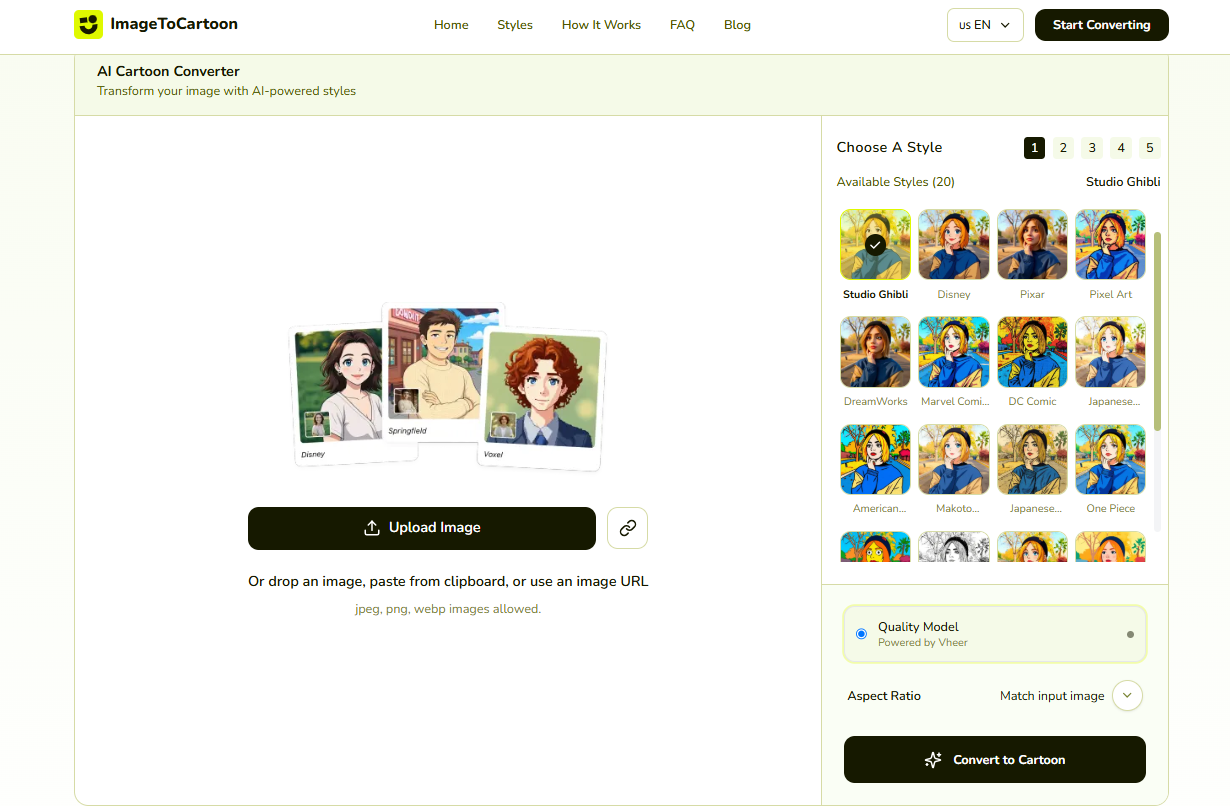
Once your photos are optimized, it's time to really have some fun! Today, AI cartoon generators can transform ordinary images into imaginative works of art, drawing inspiration from animation studios, comic books, watercolor paintings, hand-drawn sketches, and countless other artistic styles. Imagetocartoon is an excellent online AI cartoon generator—let's see how to turn your optimized WebP photos into cartoon-style images!
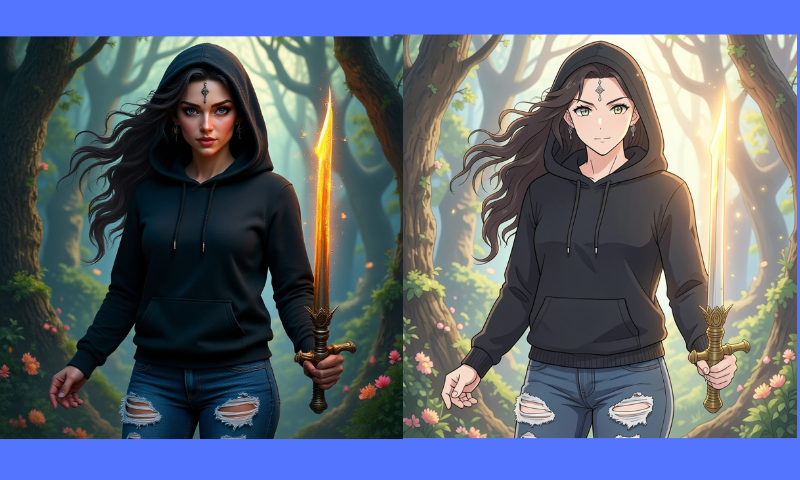
- Step 1: Go to Imagetocartoon and upload your converted WebP photo to the upload box.
- Step 2: Next, select the cartoon style you want on the right side of the page. Once you've made your selection, click "Convert to Cartoon."
- Step 3: Wait a few seconds for the conversion to complete. Click the first icon in the top-right corner of the image box to view the before-and-after comparison. To download the image to your device, click the green download icon.
WebP vs Other Formats for AI Image Editing
| Feature | JPEG | PNG | WebP |
|---|---|---|---|
| File Size | Medium | Large | Small |
| Image Quality | Good | Excellent | Excellent |
| Lossless Compression | No | Yes | Yes |
| Lossy Compression | Yes | No | Yes |
| Transparency Support | No | Yes | Yes |
| Animation Support | No | Limited | Yes |
| Faster Upload Speed | Moderate | Slow | Fast |
| AI Processing Efficiency | Good | Good | Excellent |
| Web Compatibility | Excellent | Excellent | Excellent |
| Best for AI Cartoon Tools | Good | Very Good | Excellent |
Conclusion
Through our research, we've discovered that while WebP may seem like just a file extension, it actually plays an optimizing role at every stage of the creative process. This efficient processing allows AI models to devote more time to the creative process.
The next time inspiration strikes, remember that this journey begins long before the AI starts drawing. Convert your images to WebP format first to give your creativity every possible advantage. Sometimes, the smallest steps can make the biggest difference.